Ameliorate Update 9/3/24: Feature Bonanza
Ameliorate is a tool for analyzing problems effectively, collaboratively, and with an open mind.
TLDR
- Check out Ameliorate’s shiny new home page !
- New features: tutorials, quick views, indicators, comments, and more!
- No live stream this time, but there’s a demo video for these features.
- The next focus will be on finding opportunities to help others benefit from using the tool for their own situations. Don’t hesitate to reach out if you’d like to discuss how to use it for a problem you’re working at 🙂.
Hey all, and welcome to another edition of updates for Ameliorate!
It’s been a while since the last update, so there’s a lot of new stuff to show off 🔥. The focus was initially on making it easier to view different aspects of your diagram, but after that I moved onto a few more unrelated things that I thought would be good.
To save some efforts for myself, I won’t be live streaming a demo this time around, but I did make a demo video that you can still go and watch in case you prefer that format over this post.
Without further ado, let’s see what’s been added!
Bigger Updates
New Home Page
The previous home page was kind-of just thrown together to have something, and didn’t really show off the tool very well. So I took some time to give it a bit of a makeover. Check out the new home page ! Here’s a sneak-peak:
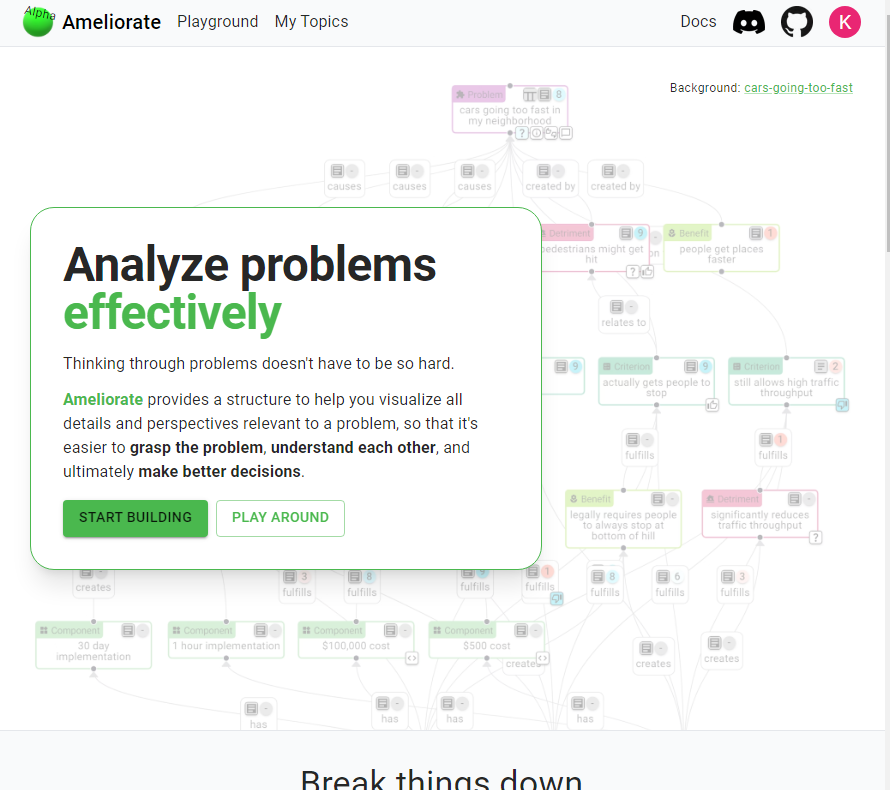
I think there’s probably still room for improvement, but I’m happy with how it turned out. Let me know if you have any suggestions for it!
Tutorials
With Ameliorate becoming a bit more fleshed-out, it also seemed time to add an easier way to learn how to use it. There’s some documentation, but that can be a lot to read through, and for a complex app like Ameliorate, it’s nice to have something built into the app.
So I’ve added a few tutorials that you can go through to learn about different aspects of the tool. There’s a path for Builders if you want to build diagrams yourself, and for Viewers if you just want to be able to navigate others’ diagrams. Check it out by opening the app (Start Building or Play Around ) and let me know what you think!
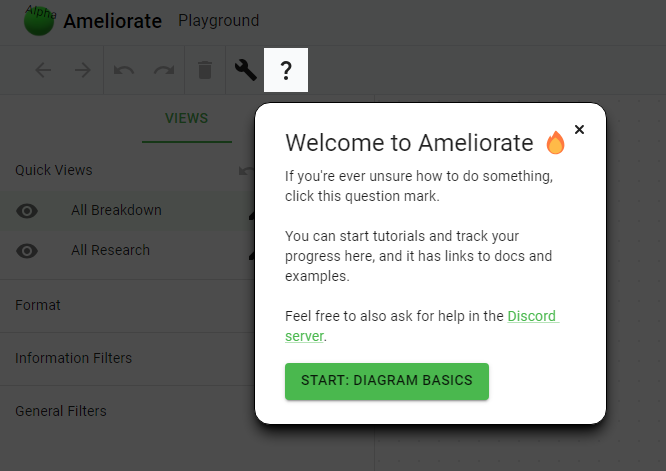
(There are also planned tutorials to show off more advanced features for Experts, but those didn’t seem worth making right now)
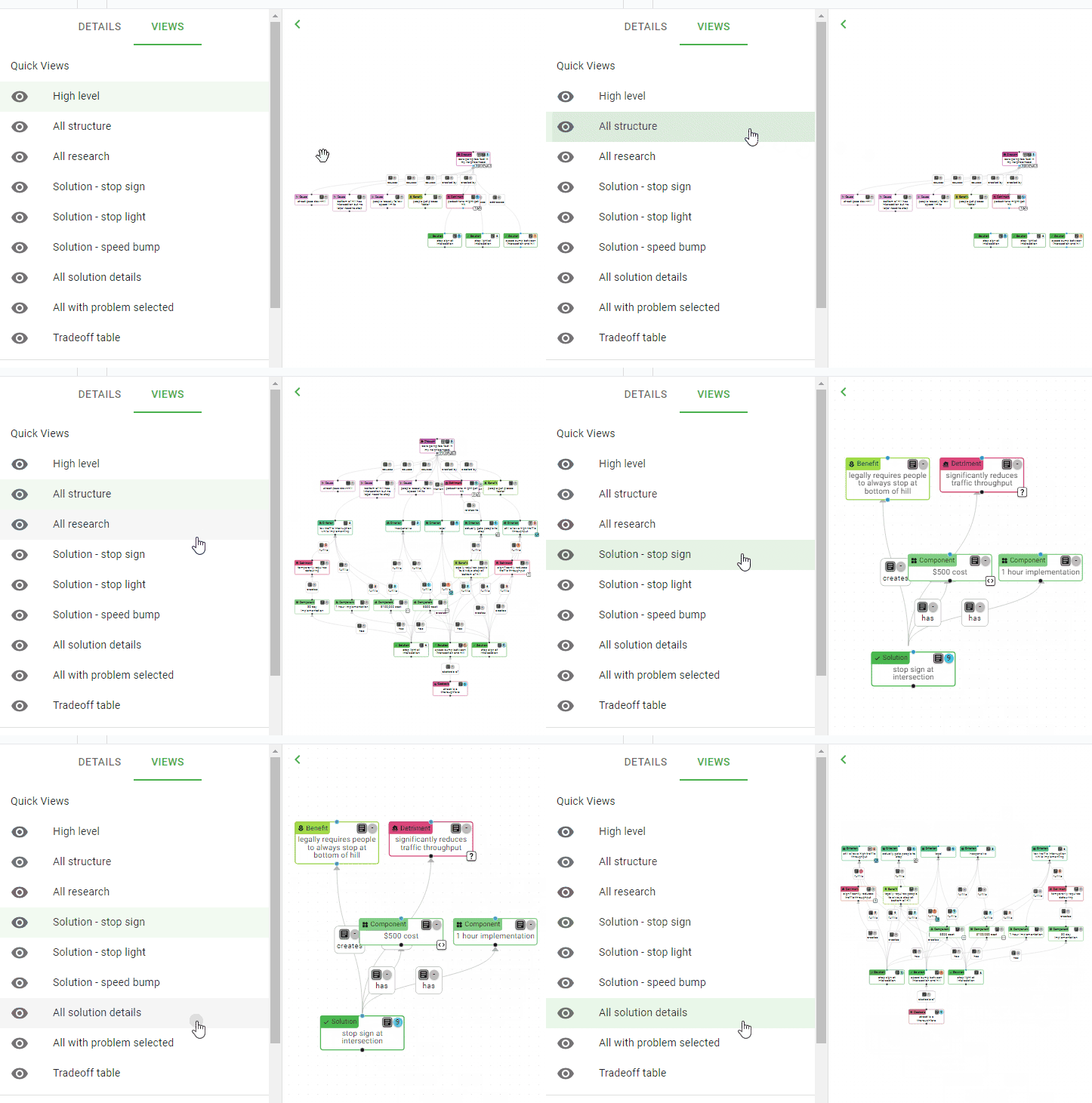
Quick Views
In the last update, filters were introduced, so you could look at different aspects of your diagram. Those are nice for any one moment, but not nice when you want to quickly jump between viewing different aspects.
That’s where Quick Views come in! You can create a Quick View for any view configuration. Not only does this allow easy navigation for yourself, but others will be able to use these views, so you can use them as a way to indicate what some useful views of your topic are.
Indicators
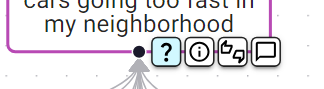
Previously, it was somewhat annoying to find where auxiliary information lived. Now, each node (and edge) has indicators to convey which kinds of extra information that the node has.
Comments & Notifications
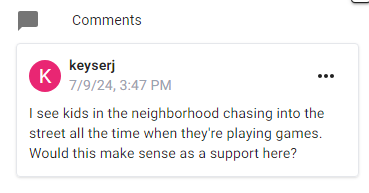
The collaboration over an Ameliorate diagram so far would have to come from presenting and discussing it synchronously, but I wanted to enable usage of it asynchronously too. So now, you can add comments (in the Details Pane), and get notifications for those either via email or through the app.
Smaller Updates
Showing/Hiding Nodes
As an addition to the filters that were added last time, now you can show/hide specific nodes, rather than having to rely on general filters that would fit the nodes you want.
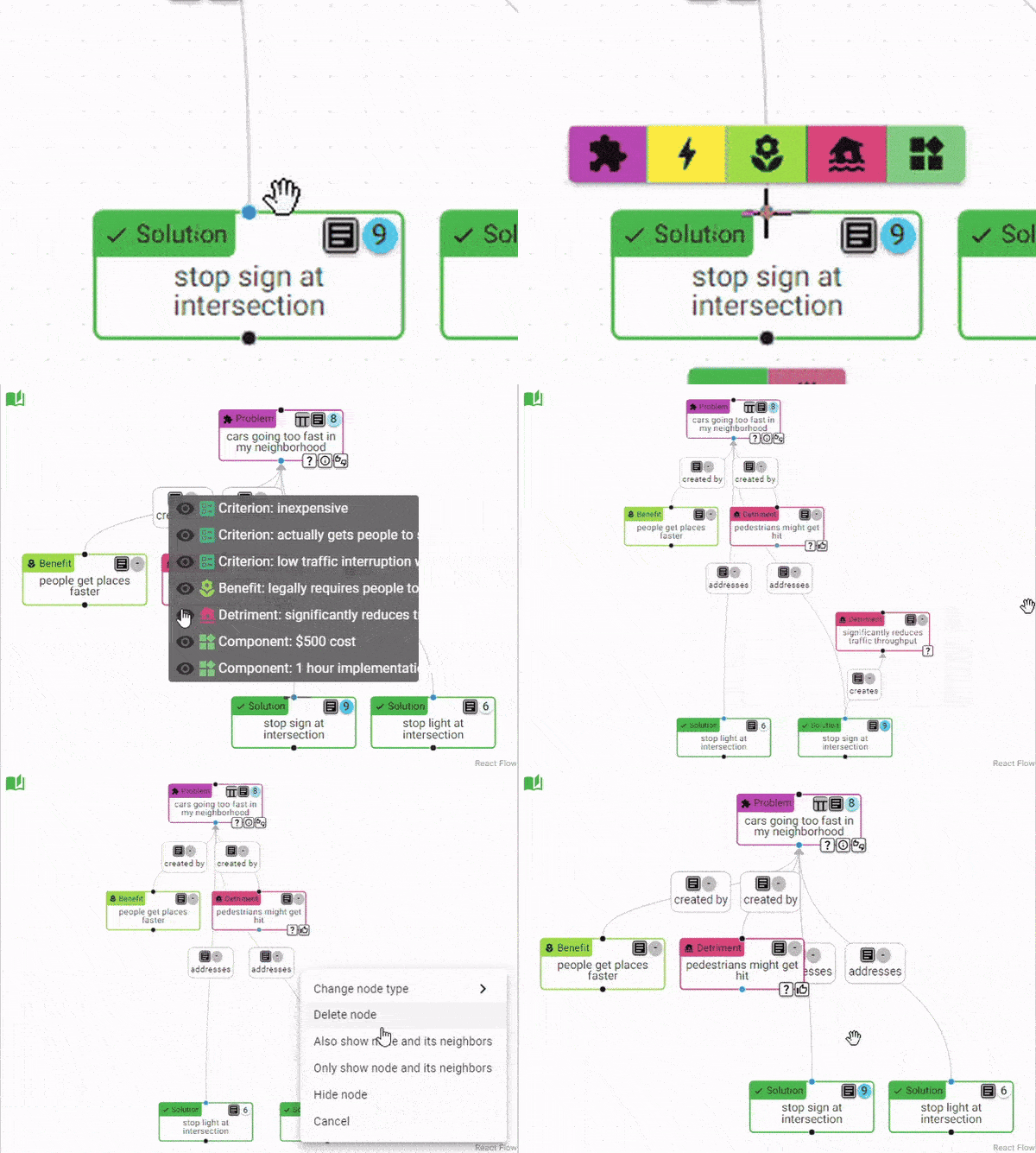
You can hide a node through its context menu, and if a node has a neighbor that’s hidden, its handle will turn blue. You can show that neighbor through the hover-menu of the handle:
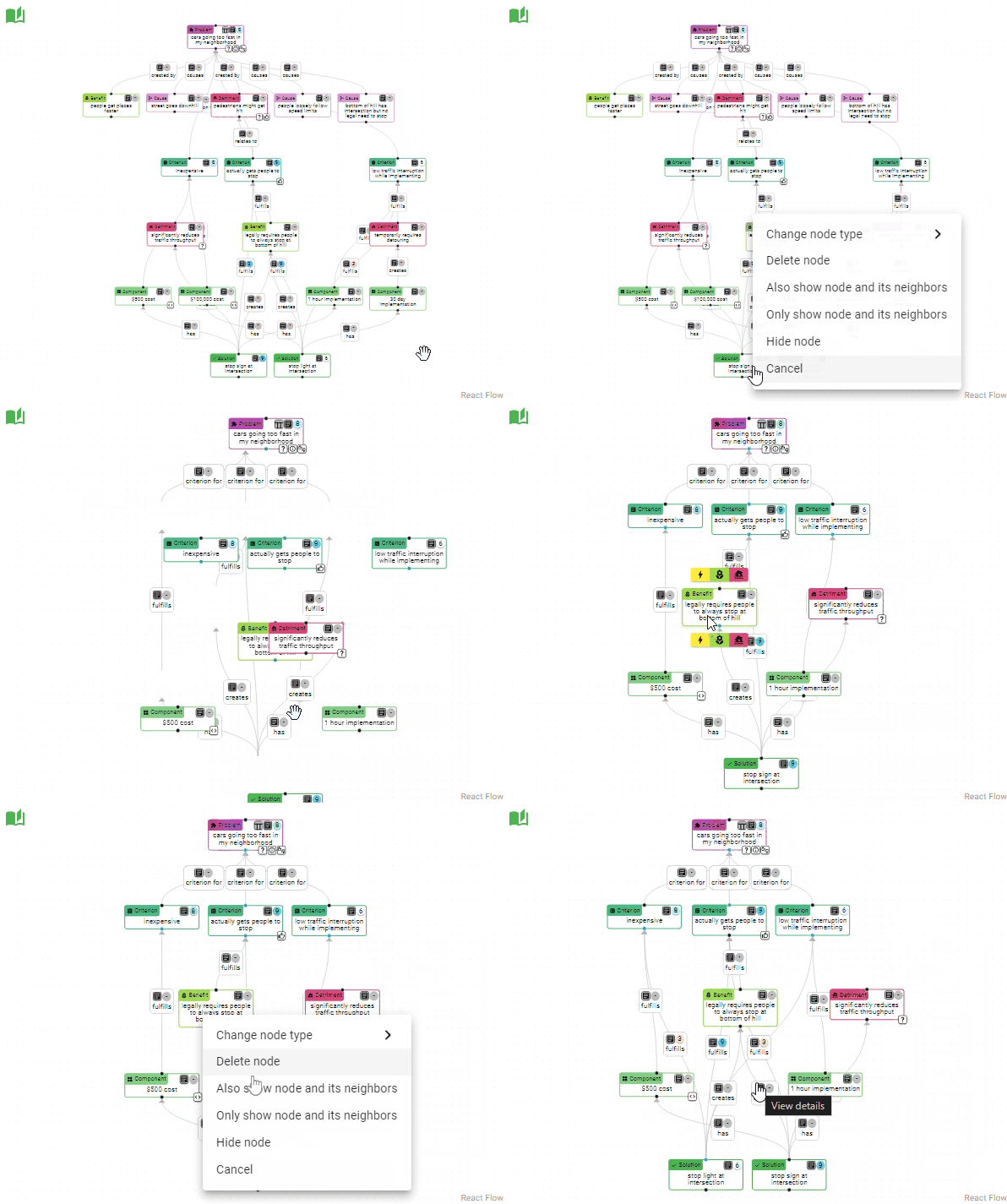
There are also convenience actions for showing only that node and its neighbors, and for showing additionally that node’s neighbors:
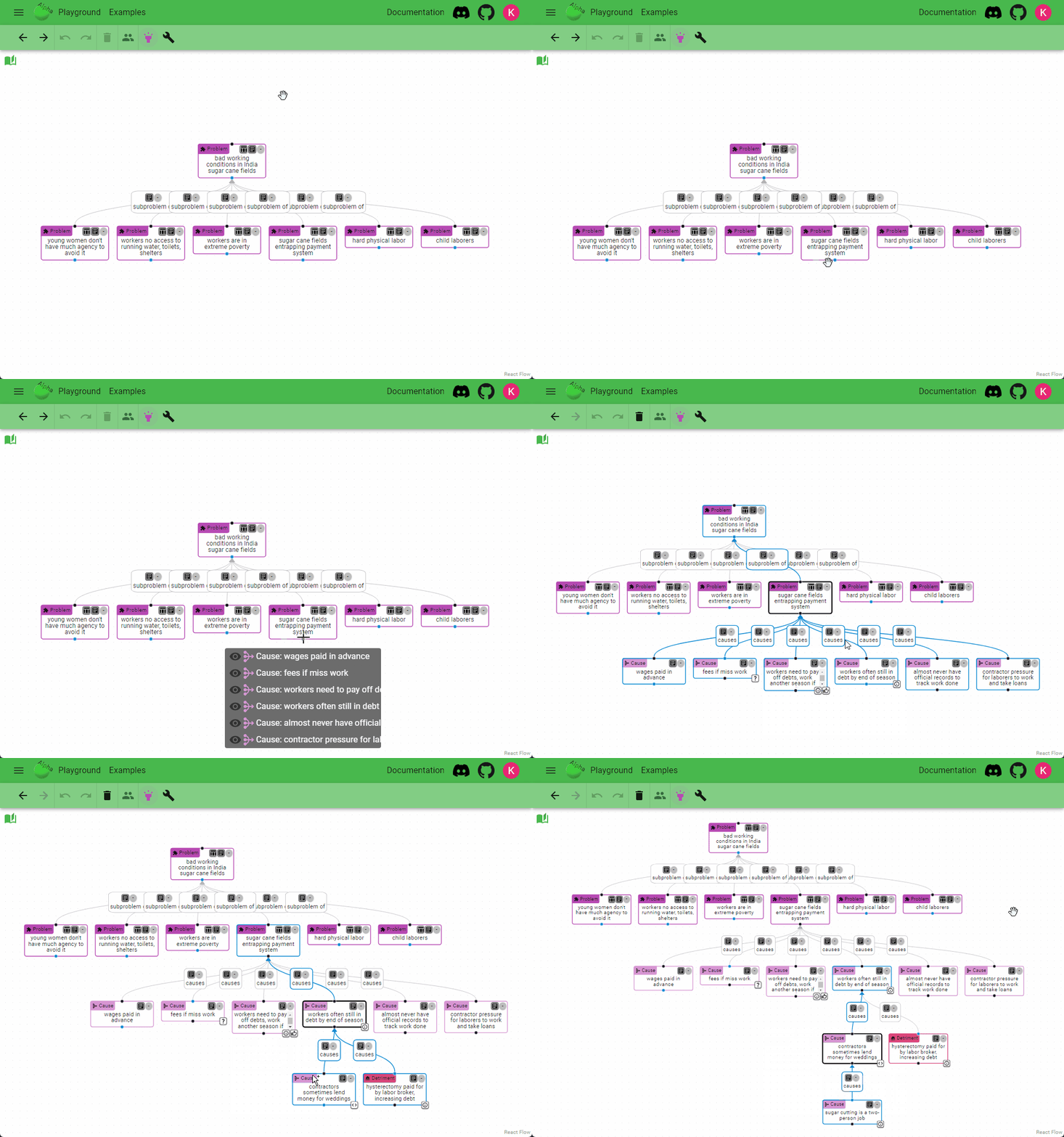
And lastly, there’s a “flashlight mode” (found in the More Actions Drawer) for quickly navigating through all the hidden neighbors of a diagram:
Layout Thoroughness
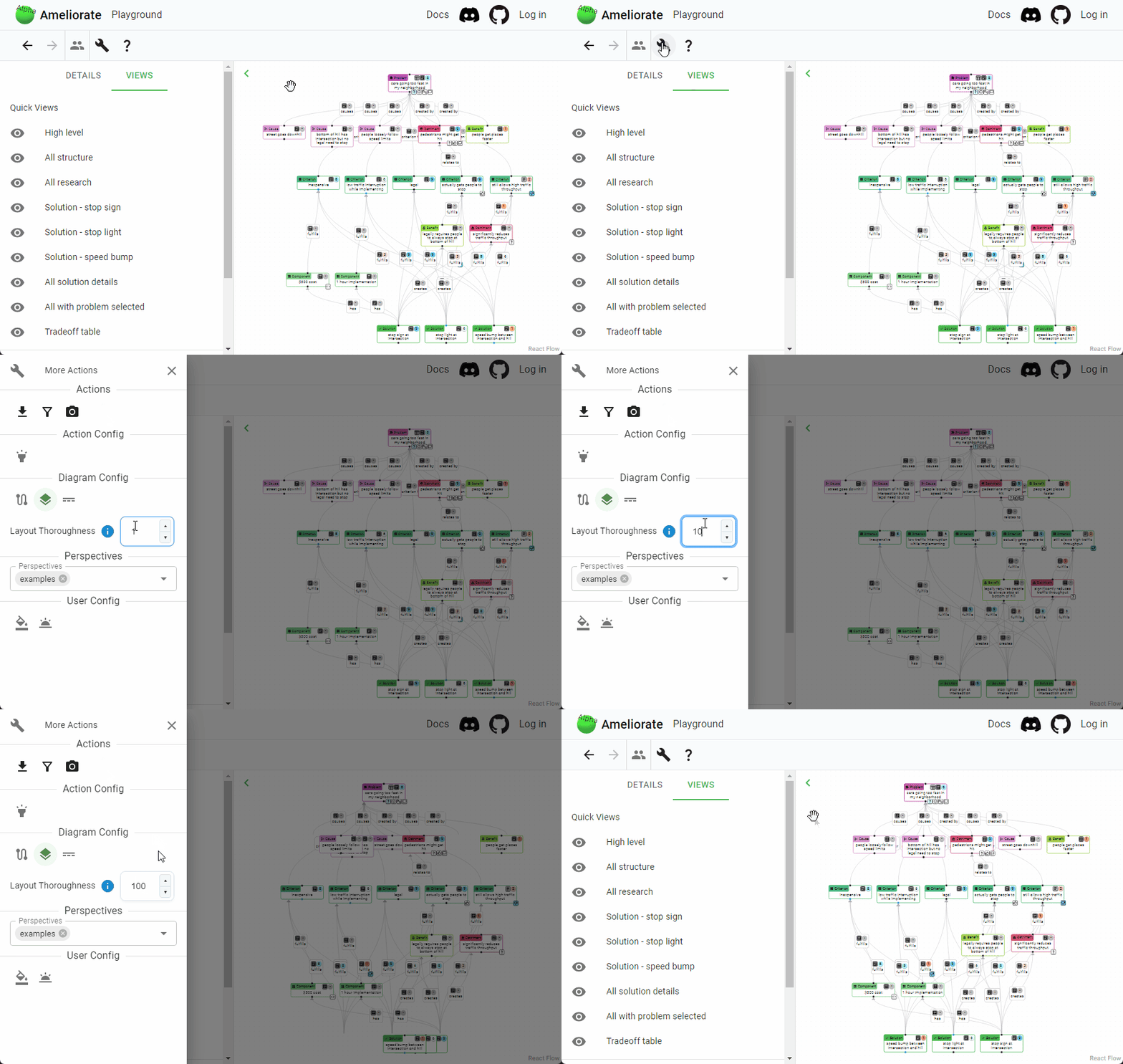
Sometimes the automatic layout isn’t good for your specific set of nodes. “Layout Thoroughness” has been added as another option to allow you to have a more desirable layout.
Its value ranges from 1-100, where a higher value will place more priority on keeping the layout balanced, with parent nodes close in distance to their children. A lower value will place more priority on keeping nodes of the same type near each other.
Toggle Node Fill
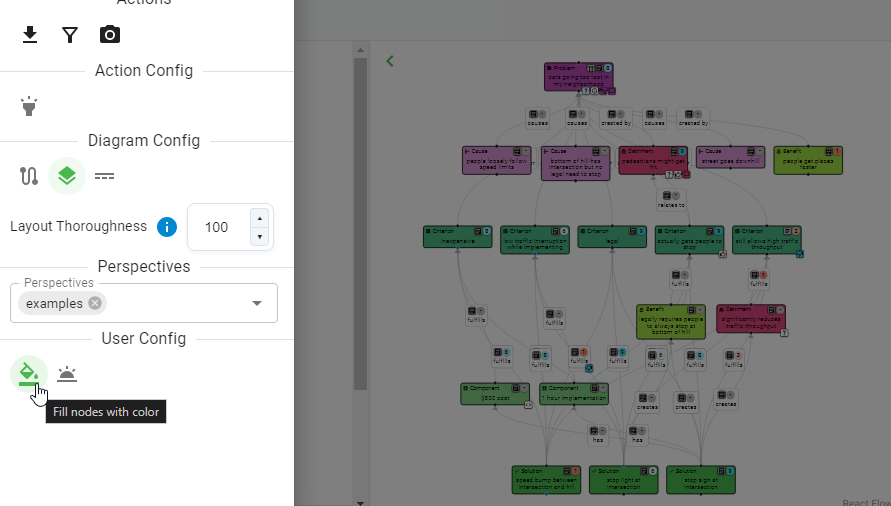
You may have noticed from the above images that there’s a new default node style, where the node’s color just outlines it, rather than being its background. This helps reduce the saturation on the page, which can be hard to look at.
Sometimes though, it’s nice to see the node’s color as the background - e.g. when you’re really zoomed out, and you want the node types to stand out more. So you can toggle this option:
Split Panes
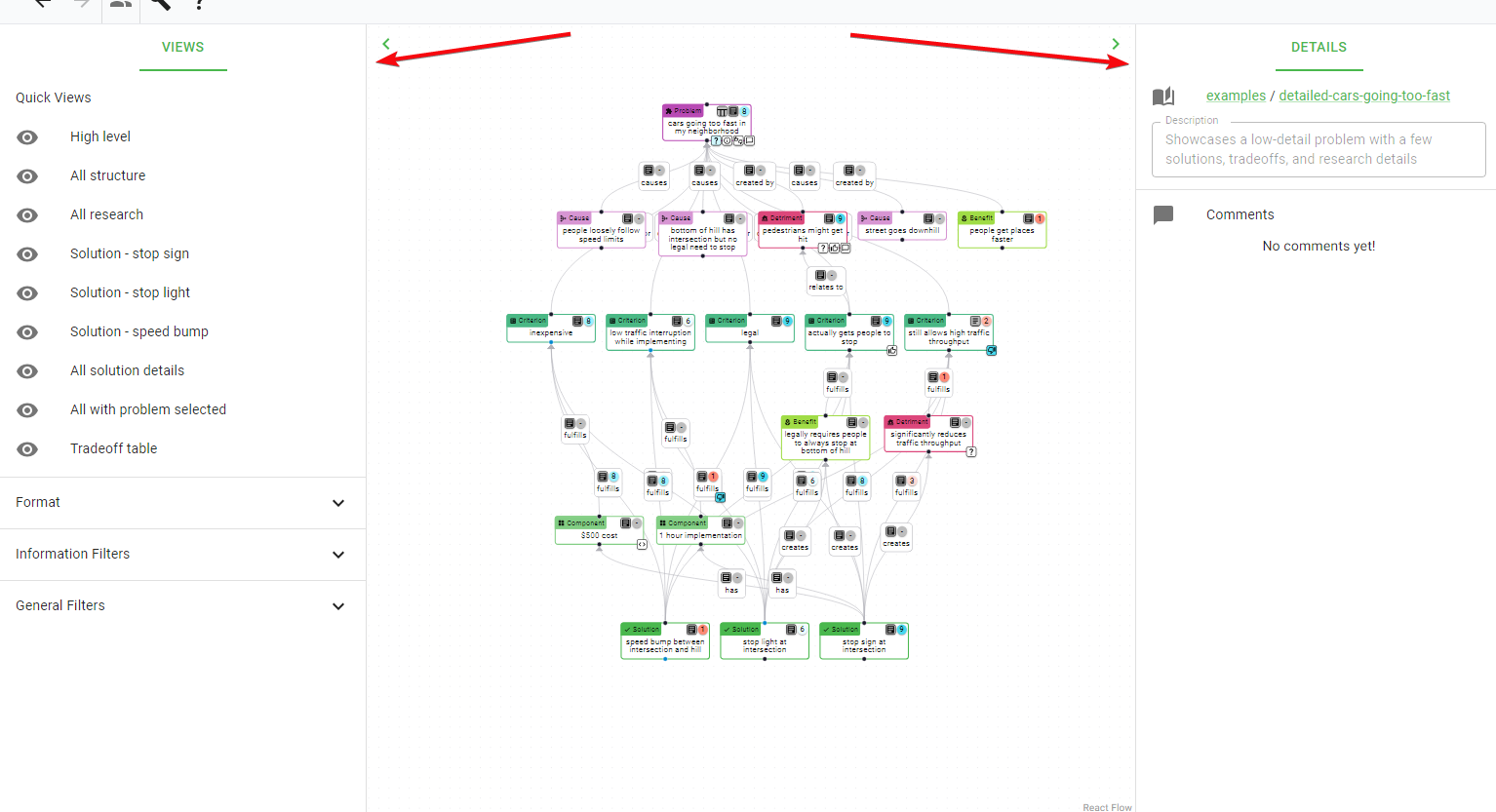
Often, if you have a widescreen monitor, it feels like there’s a lot of wasted width, and that the diagram doesn’t need so much space. So split panes have been added, to take advantage of this space!
If you have a wide viewport, the Views/Details Pane will automatically split into a separate Views Pane on the left and Details Pane on the right:
What’s Next?
At this point, I’m feeling pretty good about how well Ameliorate works! I still have too many ideas for big improvements to make 🔥 (backlog ), but it’s time to focus more on spreading the word and helping others benefit from the tool.
For the next few months, I plan to spend a good chunk of time looking for opportunities to help others apply Ameliorate to their own situations. I’ll be posting around and reaching out to a few different groups. I’m also hoping to find people that, whether or not they want to use Ameliorate themselves, want to help others improve how they analyze their problems.
If you know of anyone or any groups that may be interested in Ameliorate, or if you’d like to discuss how to use it for a problem you’re working at, don’t hesitate to reach out !
That’s all for today, and I’ll see you next time!
Cheers 🙂
Understand ourselves. Understand each other. Grow together.
Ameliorate.